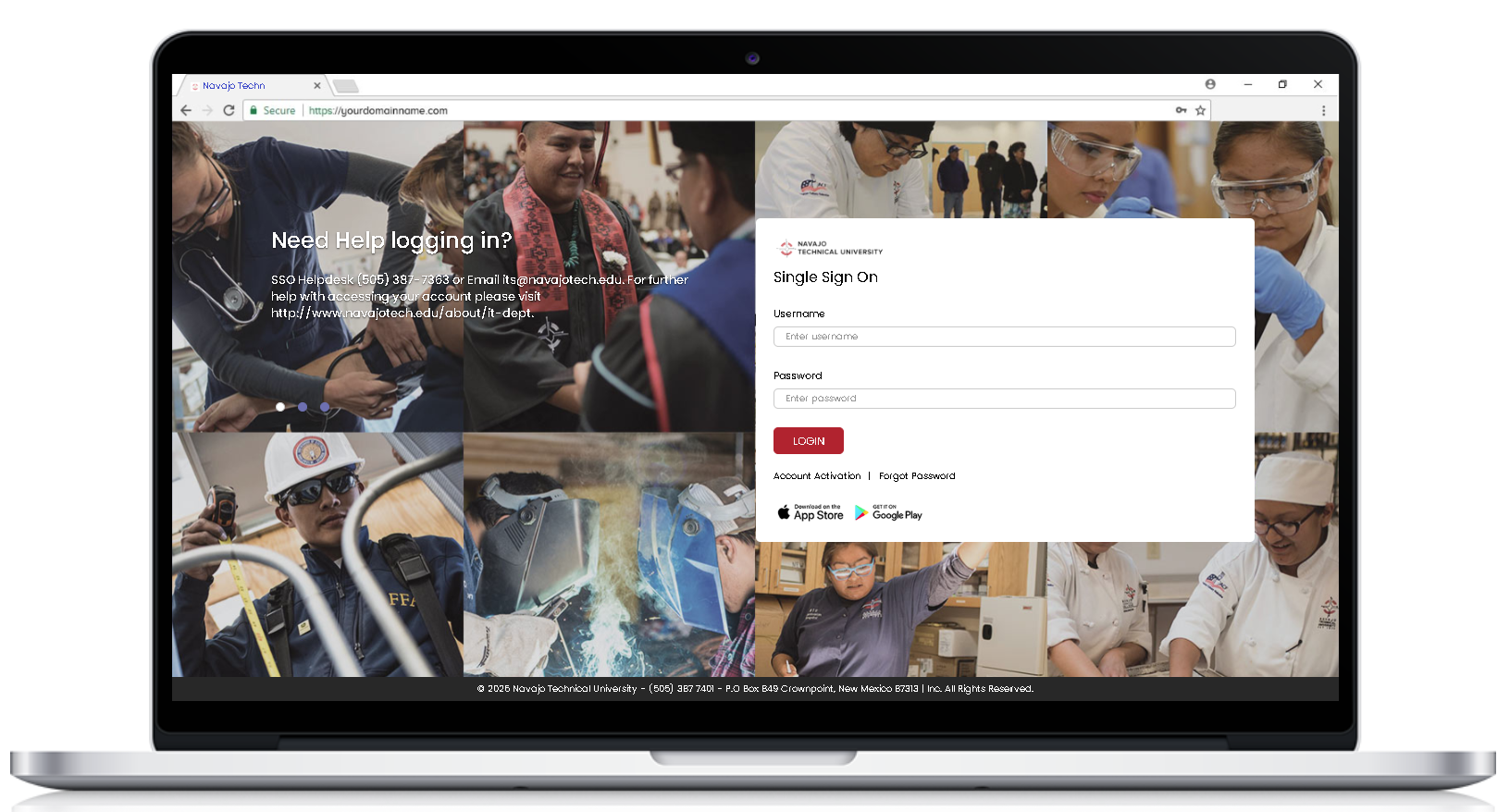
To ensure students can access their emails, and learning environments seamlessly, here is a step-by-step guide for using Single Sign-On (SSO) at Navajo Technical University.
Single Sign On link: https://sso.navajotech.edu
Student Guide: How to Log In via SSO
Navajo Technical University uses a Single Sign-On (SSO) portal. This means you only need one username and one password to access Gmail, Blackboard, MyNTU, and other services.
Step 1: Access the SSO Portal
Open your browser and go to sso.navajotech.edu.
Alternatively, go to the main NTU website and click the SSO Login link at the top of the page.
Step 2: Enter Your Credentials
Username: Use your NTU Skyhawk username (usually firstname.lastname).
Example: If your name is Skyhawk John, your username is skyhawk.john.
Password: Enter your current NTU password.
Step 3: First-Time Setup (New Students)
If this is your first time logging into Single Sign On with Navajo Technical University:
Click the "First Time Users" button if prompted.
Follow the prompts to verify your identity using your NTU Skyhawk username.
Set your Recovery Options: Choose at least two (Security Questions, Personal Email, or Phone Number). This allows you to reset your own password if you get locked out.
Important: NTU does have a 90 days password policy.
Step 4: Launching Apps
Once logged into the SSO dashboard, you will see a list of icons (Apps).
Click on an app icon.
You will be automatically redirected and signed into your new Google account without having to type your password again.
Apps like Blackboard, you will need to select sign-in with third party account and choose Navajotech SSO.
Need Login Help?
If you cannot log in, contact the NTU IT Help Desk:
Email: its@navajotech.edu
Phone: 505-387-7363
Required Info: Please include your Full Name and Student ID Number in your request.